






How to Reset Your Password
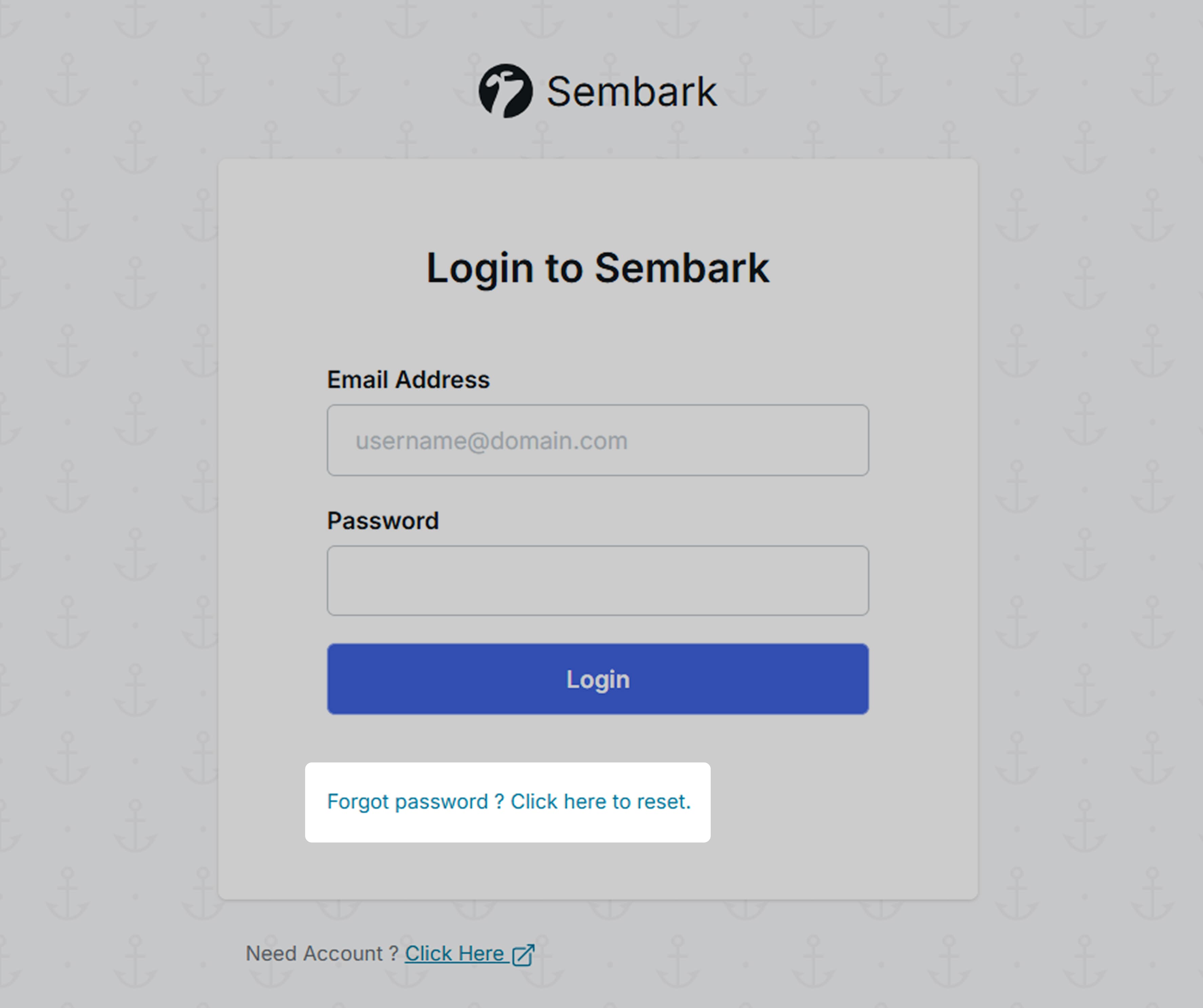
- Go to the Sembark Login page. (app.sembark.com)
- Click on the Forgot Password link.
- Enter your registered email address.
- Click Get Instructions
- You will receive an email containing instructions to reset your password
- Follow the instructions in the email and create a new password.
Forgot Your Email Address?
If you do not remember the email address associated with your account, please contact your Account Administrator.
Your administrator can verify the registered email address and help you regain access to your account.
Troubleshooting
Below are some common issues you may encounter while resetting your password.
Can’t Reset Password Error
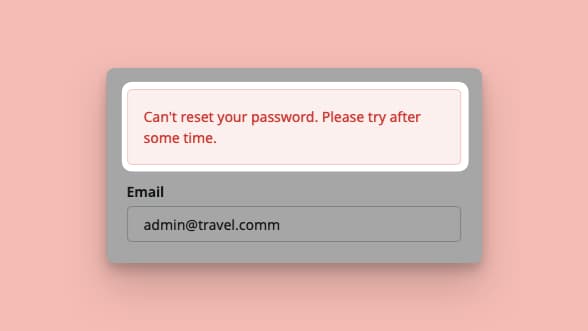
If you see a “Can’t Reset Password” message while trying to reset your password, it is usually due to one of the following reasons:
Incorrect Email Address
The email address you entered does not match any active Sembark account.
What you can do:
- Make sure you’ve entered the correct registered email address.
- If you’re unsure which email is linked to your account, contact your Company Administrator for assistance.
Account Archived or Disabled
Your account may have been archived or disabled by your Company Administrator, preventing password reset.
What you can do:
- Contact your Company Administrator to verify your account status.
- Once your account is reactivated, you can request a password reset again.
Password Reset Email Not Received
If you receive a success message after submitting the password reset request but do not receive the email immediately, please allow some time for delivery.
Things to Check
- Wait up to 5 minutes for the email to arrive.
- Check your Spam or Junk folder.
- Verify that you entered the correct email address.
- Ensure your mailbox is not full.
If you still do not receive the email after several minutes, contact your Account Administrator or Sembark Support for assistance.
Unable to Open the Password Reset Link?
If you are unable to open the password reset link, it is usually because an active Sembark session already exists on your device or browser.
Solution
- Log out of your current Sembark account from all active browser tabs.
- Return to the password reset email.
- Click the password reset link again.
- You will be redirected to the password reset page.
- Create your new password and click Save.
Additional Tip
If the issue persists, try opening the password reset link in an Incognito/Private browser window or clear your browser cache and cookies before trying again.
Reset Password for a User
Learn how administrators can reset passwords for team members directly from the system.
Sembark allows Account Administrators to reset passwords for users without requiring the user to perform a password reset themselves. This feature is particularly useful for organizations that prefer to manage employee credentials centrally and enforce company-defined passwords.
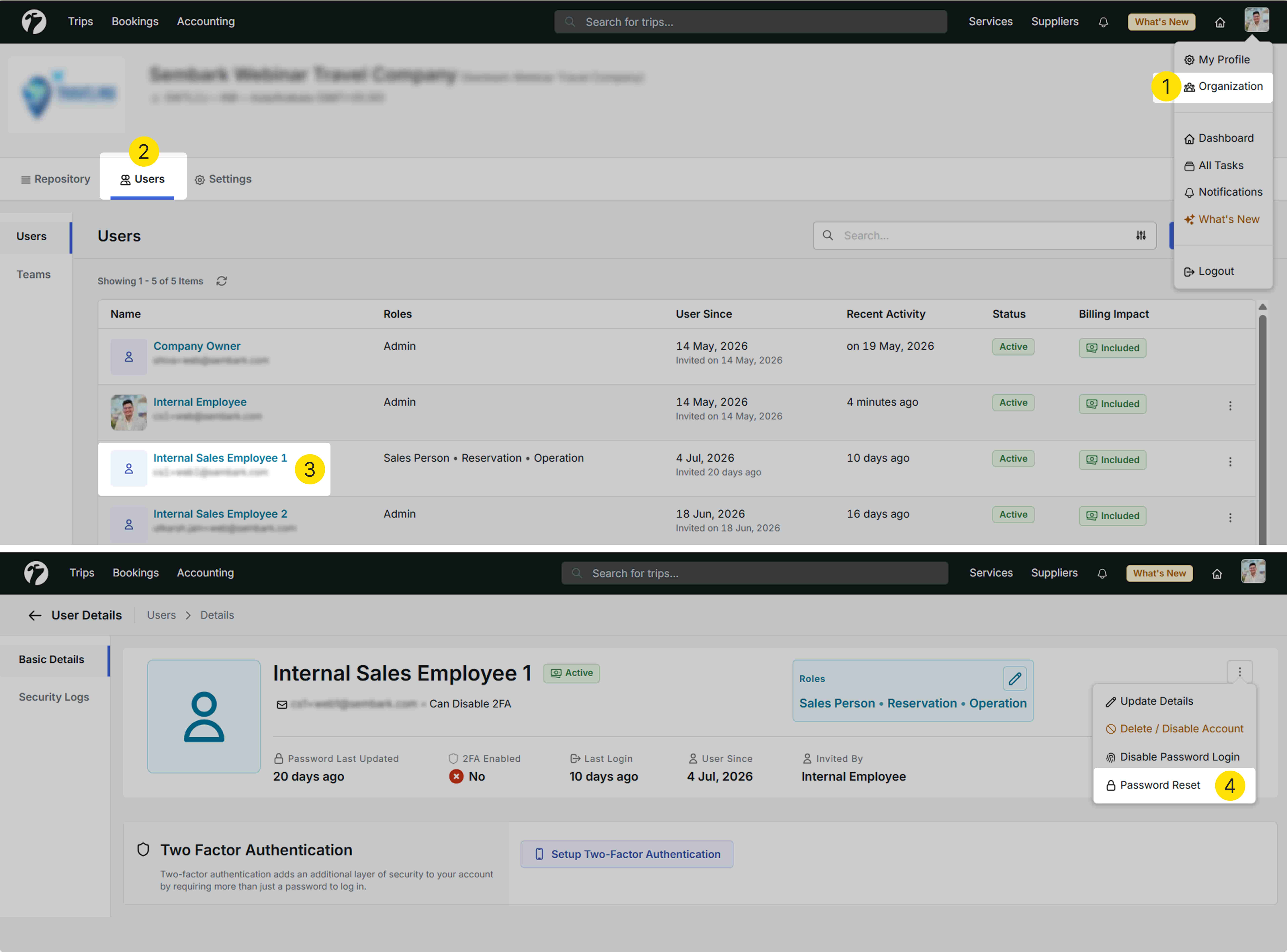
How to Reset a User’s Password
- Navigate to Organization → Users.
- Select the user whose password you want to reset.
- Click on the Three-Dot Menu (⋮) next to the user.
- Select Reset Password.
ou will be prompted to create a new password and choose one of the following options.
Option 1: Require User to Change Password on First Login
When this option is enabled, the user will be required to create a new password the next time they log in.
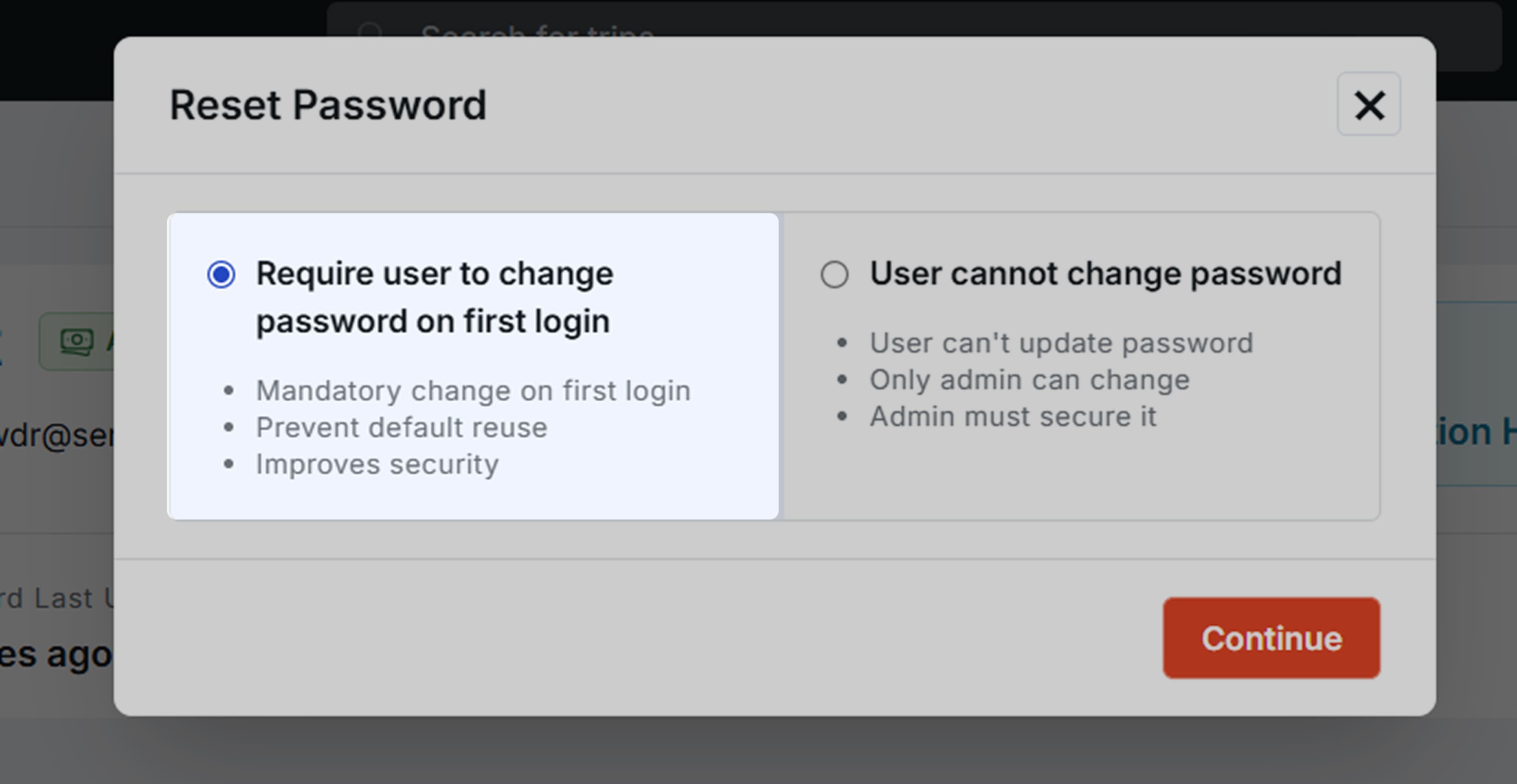
Benefits
- Forces users to create their own secure password.
- Prevents continued use of temporary passwords.
- Improves overall account security.
- Ensures the administrator does not retain access to the user’s personal password.
Recommended For
Organizations that want administrators to set an initial password while allowing users to manage their own credentials afterward.
Option 2: User Cannot Change Password
When this option is enabled, the user will not be allowed to modify their password.
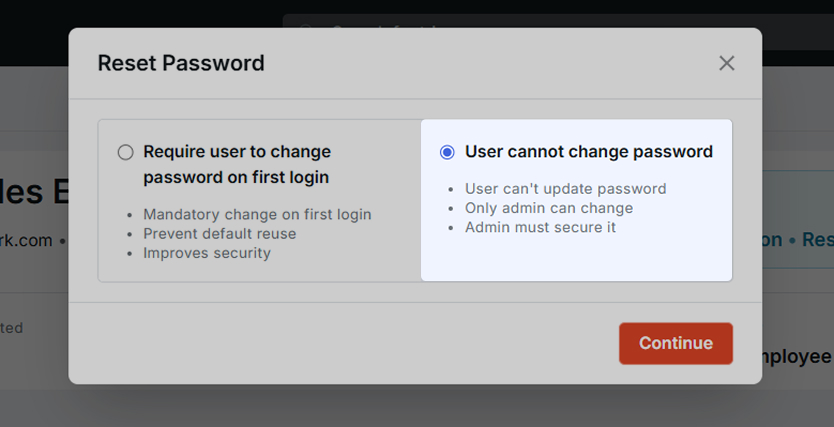
Benefits
- Passwords remain under administrator control.
- Ensures users continue using company-assigned credentials.
- Useful for organizations with strict IT or security policies.
Important Note
If this option is enabled, only an administrator can reset or change the user’s password in the future.
Recommended For
Organizations that do not allow employees to manage their own passwords and prefer centralized password administration.
Best Practice
For improved security, we recommend enabling Require User to Change Password on First Login whenever possible. Use User Cannot Change Password only when it is required by your organization’s security policy.
Important Notes
- Administrators can reset passwords only for users who do not have Administrator privileges.
- Users with Administrator access cannot have their passwords reset by another Administrator through the User Management section.
- Administrator accounts must use the standard Forgot Password process or manage their passwords through their own account settings.
- This restriction is implemented to maintain account security and prevent unauthorized changes to Administrator credentials.
Need Additional Help?
If you continue to experience issues while resetting your password, please contact our support team.
Email: support@sembark.com
Our team will be happy to assist you in regaining access to your account.