







Add follow-ups every time you speak with the client. It is shown on the right side of the page. You can also assign tags to quickly identify your interested or non-interested leads.
Follow-ups
You can view the latest follow-up on a query in the queries listing page itself under the “In Progress” tab.
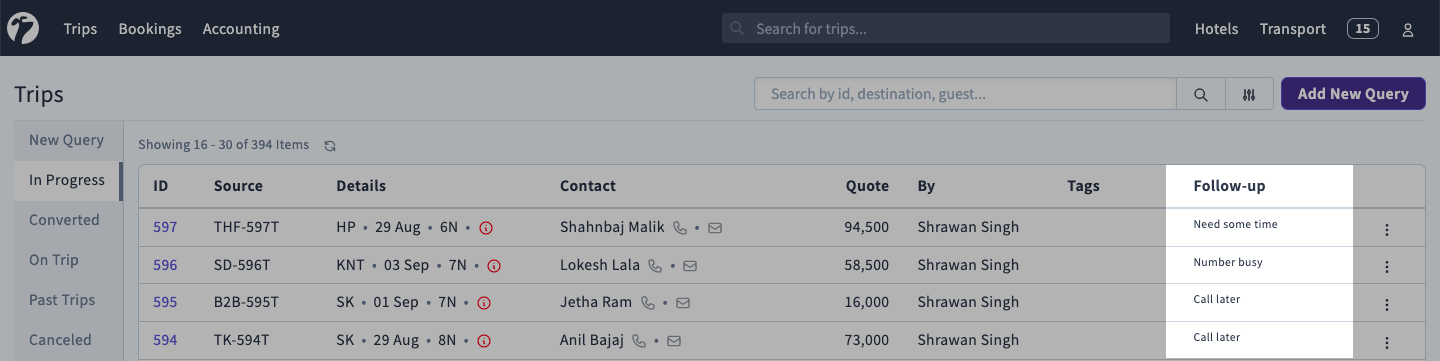
Add New Follow-ups
On a query details, you can all the follow-ups for this query as shown in the figure bellow.
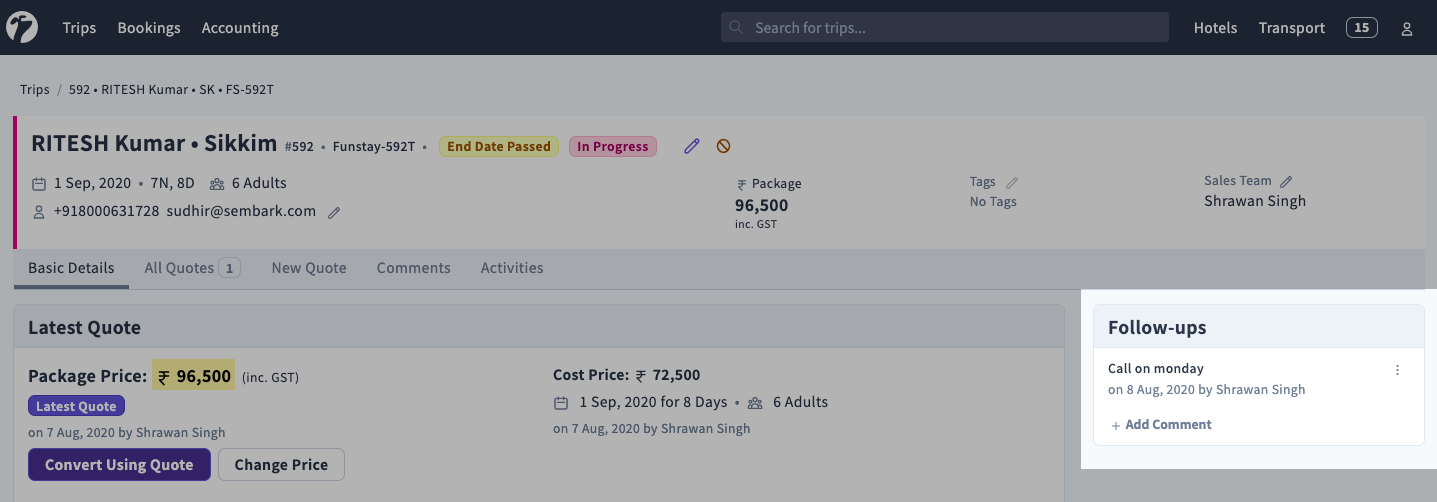
Click on Add Comment to add a follow-up comment to this query. Provide a descriptive text for the followup and click on Save to save these details.
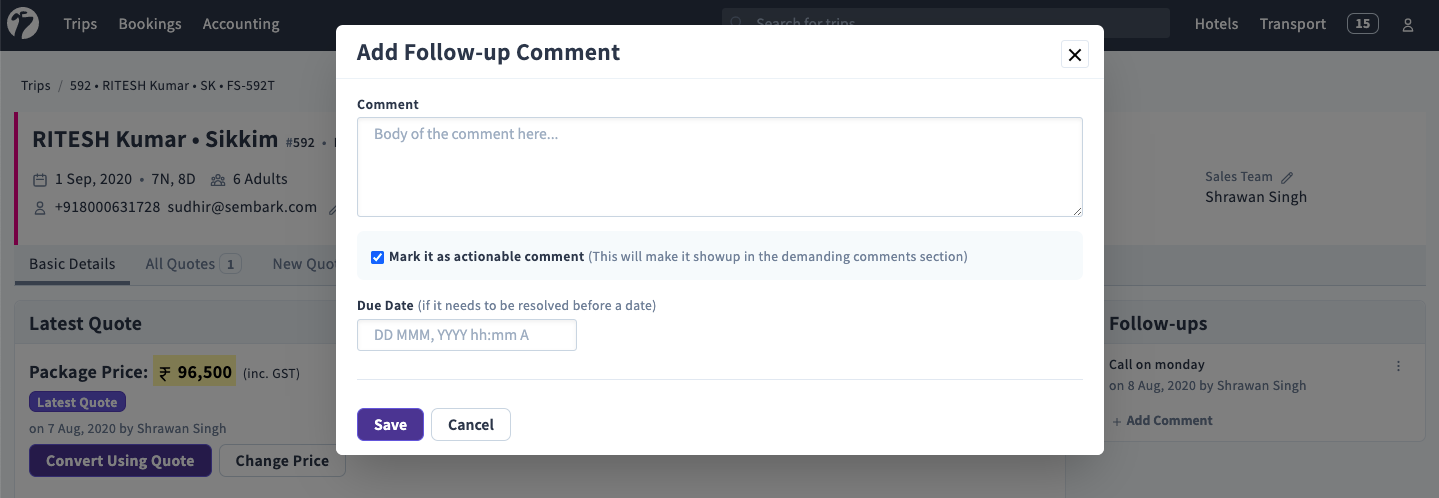
Reminders
To recieve reminders regarding your follow-ups, you should set a Due Date and time when adding a follow-up. You will recieve a email for follow-up reminder, 30 minutes prior to the due date and time.
WhatsApp Message on a Follow-up
With the WhatsApp Integration connected, a follow-up can also message the customer. Attach an approved WhatsApp template to a follow-up with a due date, and Sembark sends it to the customer when the follow-up falls due — for example a gentle “Did you get a chance to review the quote?” two days after sharing it.
TODO: Add image for WhatsApp Message on a Follow-up
- Open the follow-up dialog:
- On the queries list, click the row’s ⋮ > Edit Tags and Follow-Ups, or
- On a trip’s details page, click + Add in Tasks & Comments (or Add Follow-up from the trips list’s ⋮ menu).
- Write the follow-up note and set the Due Date.
- Switch on Message the customer on WhatsApp.
- Pick the WhatsApp Template. The list shows templates made for this record type and templates without variables.
- If the template’s business account has more than one number, pick Send From.
- Check the preview — it shows the message exactly as this query or trip fills it — and click Save.
The same option is available on tasks for payment instalments of a trip.
When the message is sent
The message is sent when the follow-up falls due, only if the follow-up is still unresolved. If you resolve it earlier (say, the customer already replied), nothing is sent. A due date is required when a WhatsApp message is attached.
The follow-up shows the message’s status: the template that will go out when due, when it was sent, or why it failed. If a message fails, the follow-up’s author receives a WhatsApp message not sent notification. Template variables are read from the record at the time of sending, so the customer always gets the latest details.
Tags
Similar to follow-ups, you can attach Tags to a query. Tags allows you to categories and filter queries easily. You can add tag(s) from the query details page from the tags ui in the header section. Click on pencil icon to add or remove tags from a query.