









This update enhances the Trip Sales Report with custom column presets and multi-month download capabilities, expands custom date downloads across all sales reports, and adds manual controls for transport service closing dates. We’ve also introduced a comprehensive sheet management system for cab metric pricing, allowing you to create, manage, and upload pricing sheets directly in the system or via CSV. Several workflow improvements and bug fixes are also included.
Let’s dive into more details.
1. Trip Sales Report - Custom Columns and Custom Date Download
We have enhanced the Trip Sales Report with powerful customization options, allowing you to create custom column presets and download reports for extended date ranges.
Accessing the feature
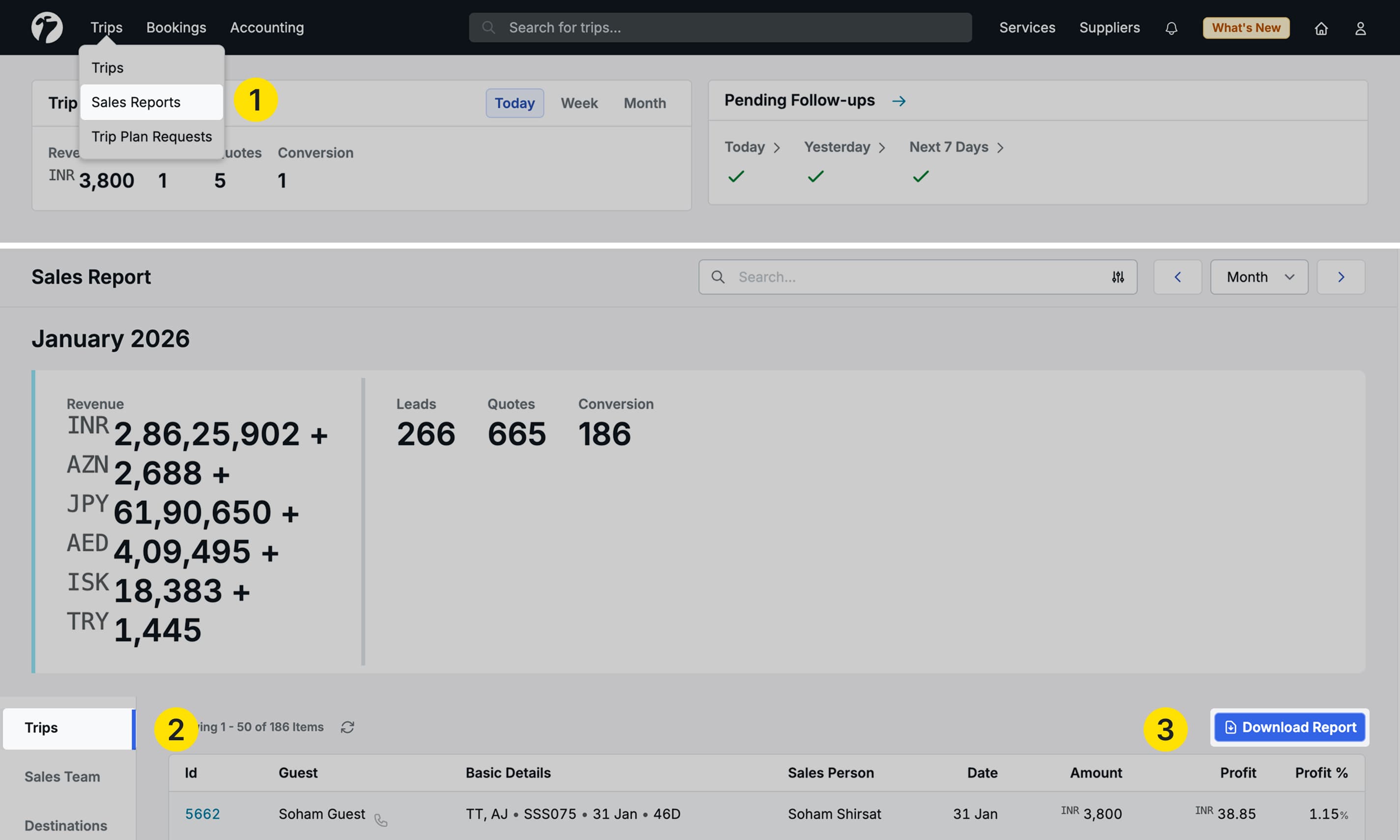
Navigate to Trips → hover and click Sales Reports → select the Trips tab → click Download Report.
Custom Date Range Selection
How it works
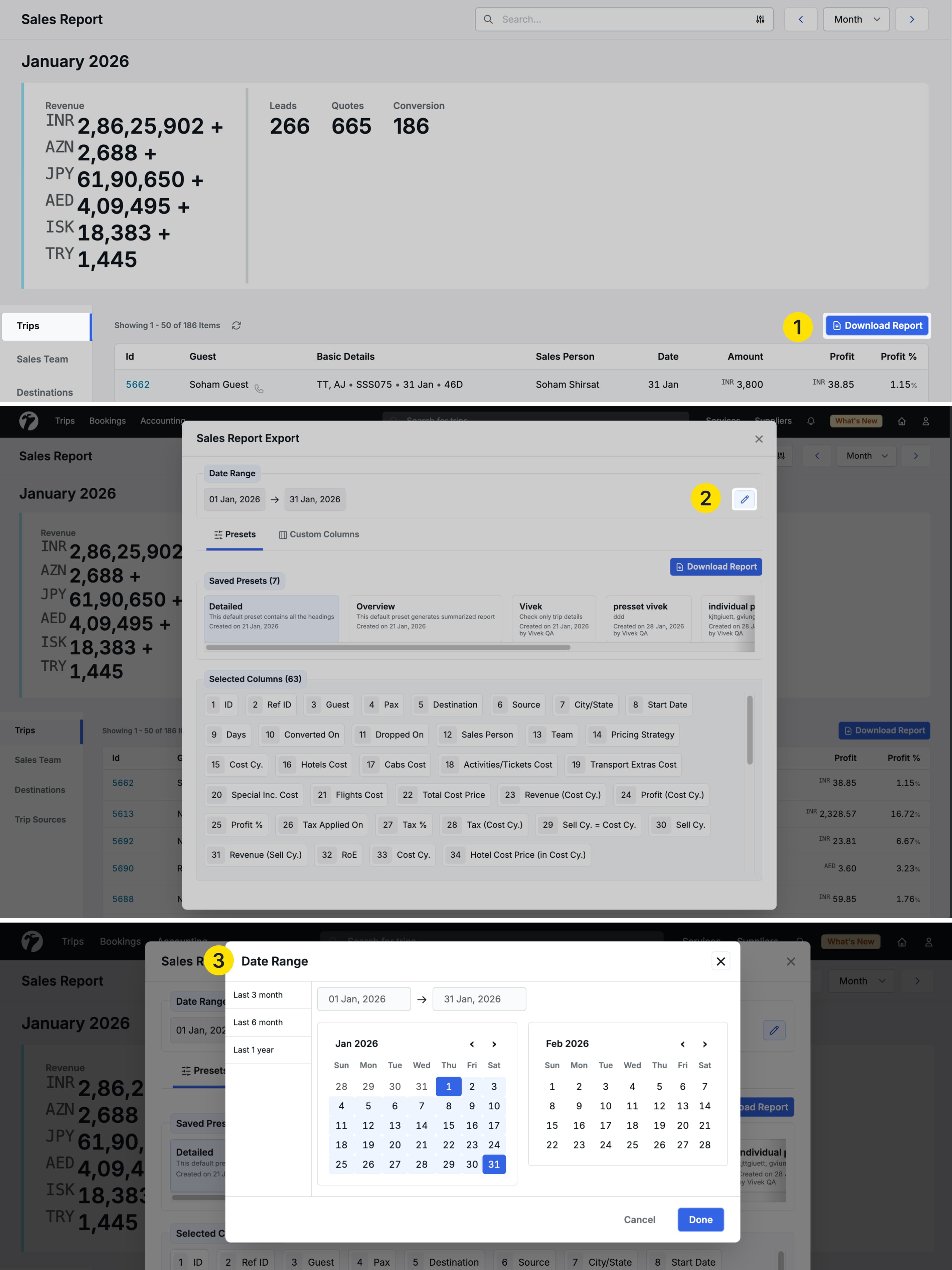
- By default, the current month is selected
- Click Edit to modify the date range
- Select any custom date range using the date picker
- The report will generate data for your selected period
Column Presets
The new preset system allows you to save custom column configurations for repeated use.
Default presets
Two presets are available by default:
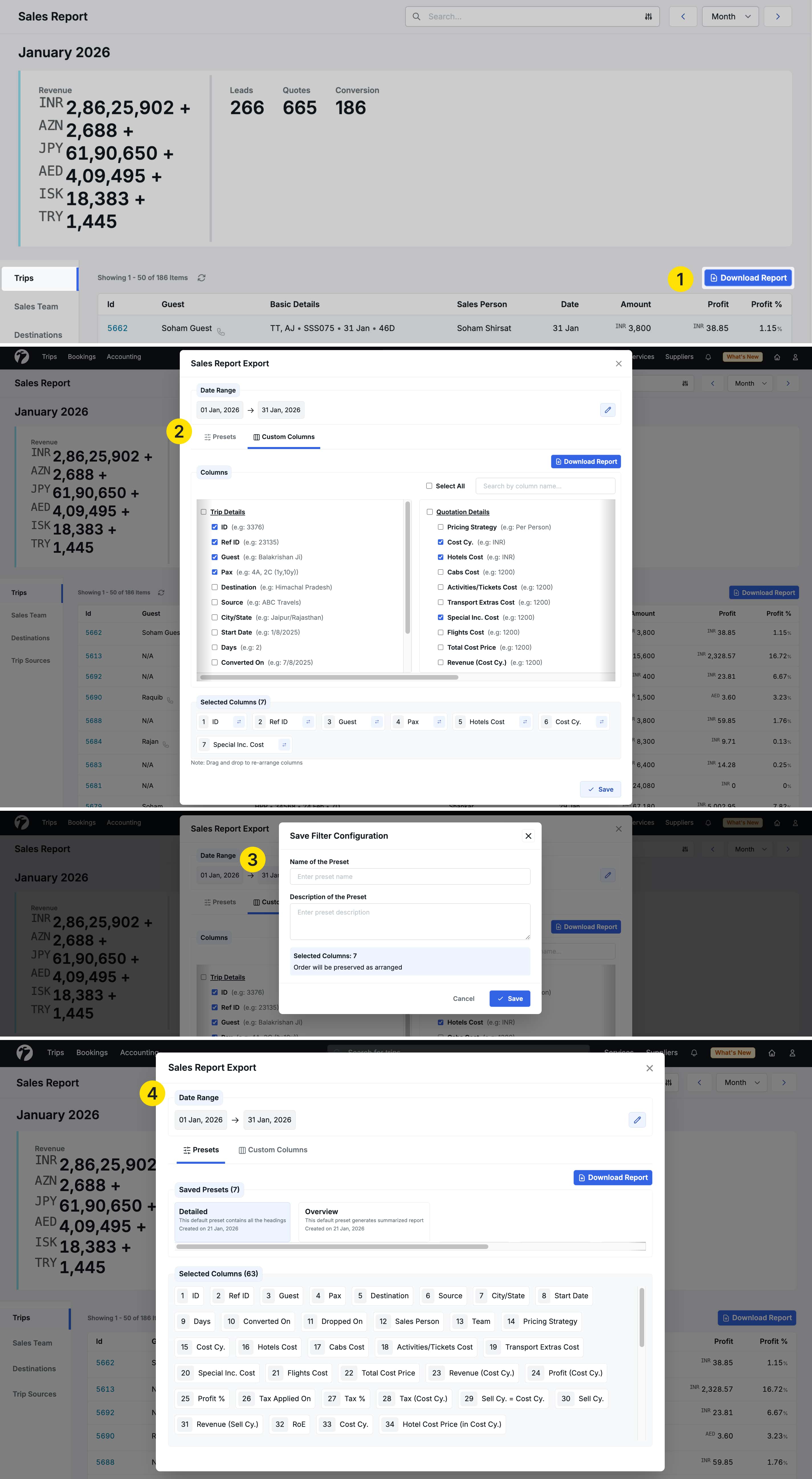
- Detailed: Includes all available columns (replaces the previous “Detailed Report” download)
- Overview: Shows summary columns only (replaces the previous “Overview Report” download)
These presets mirror the functionality of the two separate download options that existed before this update.
Creating custom presets
Switch to the Custom Columns tab to build your own preset:
- Browse columns organized by category groups
- Search for specific columns using the search box
- Select the columns you want to include
- Review selected columns in the “Selected Columns” section below
- Click Save
- Enter a Preset Name and Description
- The new preset appears in the Presets tab
Using presets
- Select any preset from the Presets tab
- View all columns included in that preset
- Click Download to generate the report with selected columns and date range
Download behavior
Reports are generated based on two parameters:
- Date Range: The period you selected
- Preset: The column configuration you chose
This combination gives you complete control over what data is exported and for which time period.
2. Multi-Month Custom Date Downloads for Sales Reports
We have expanded custom date range downloads to three additional sales reports, making it easier to analyze data across extended periods.
Available in these reports
Navigate to Trips → Sales Reports and access:
- Sales Team Sales Report tab
- Destination Sales Report tab
- Trip Source Sales Report tab
How to download custom date ranges
-
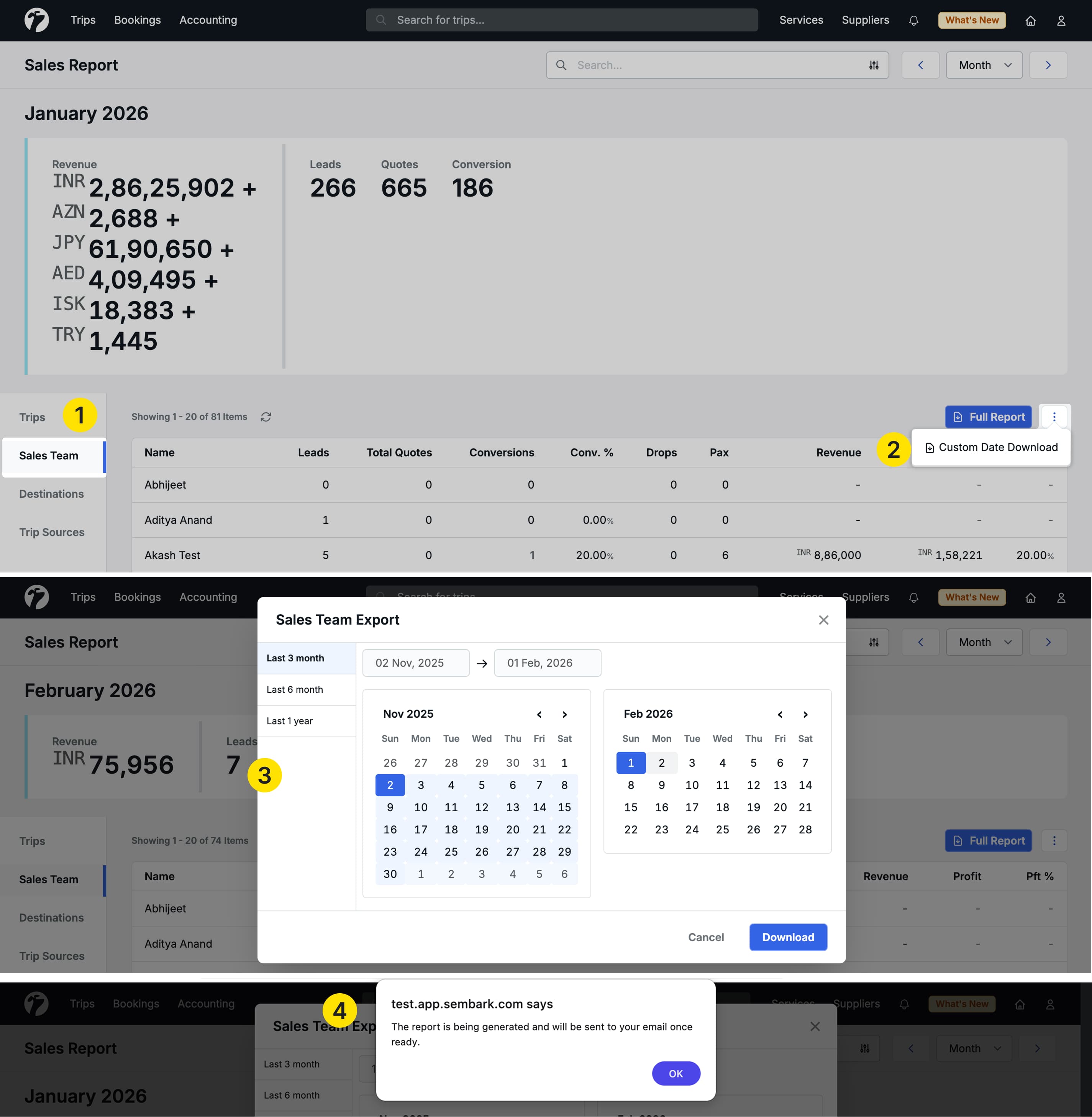
Beside the Full Report button, click the ellipsis icon
-
Select Custom Date Download
-
Choose from quick options:
- Last 3 months
- Last 6 months
- Last 1 year
-
Or select a custom date range using the calendar picker
-
Click Download
Download delivery method
The system handles report delivery based on the date range size:
Short-range reports (up to 31 days)
- Downloads immediately in your browser
- Instant access to the Excel file
Long-range reports (32+ days)
- Report is sent to your registered email address
- A notification appears in your notification panel confirming the email has been sent
- This prevents browser timeouts for large datasets
Note: This custom date download feature is also integrated into the Trip Sales Report, giving you consistent download behavior across all four sales report types.
3. Transport Service Closing Dates - Manual Entry
We have added manual controls for setting closing dates for transport services, making it easier to mark when services are unavailable without using sheet uploads.
What’s new
Previously, transport service closing dates could only be set via sheet upload. You can now configure them directly in the system through the user interface.
Two new fields
Close on Day of Week
- Select specific days when the service is closed (Monday, Tuesday, etc.)
- Useful for weekly maintenance or regular off-days
Close on Date/Interval
- Add specific date ranges when the service is unavailable
- Perfect for seasonal closures, holidays, or maintenance periods
- Add multiple date ranges as needed
How to set closing dates
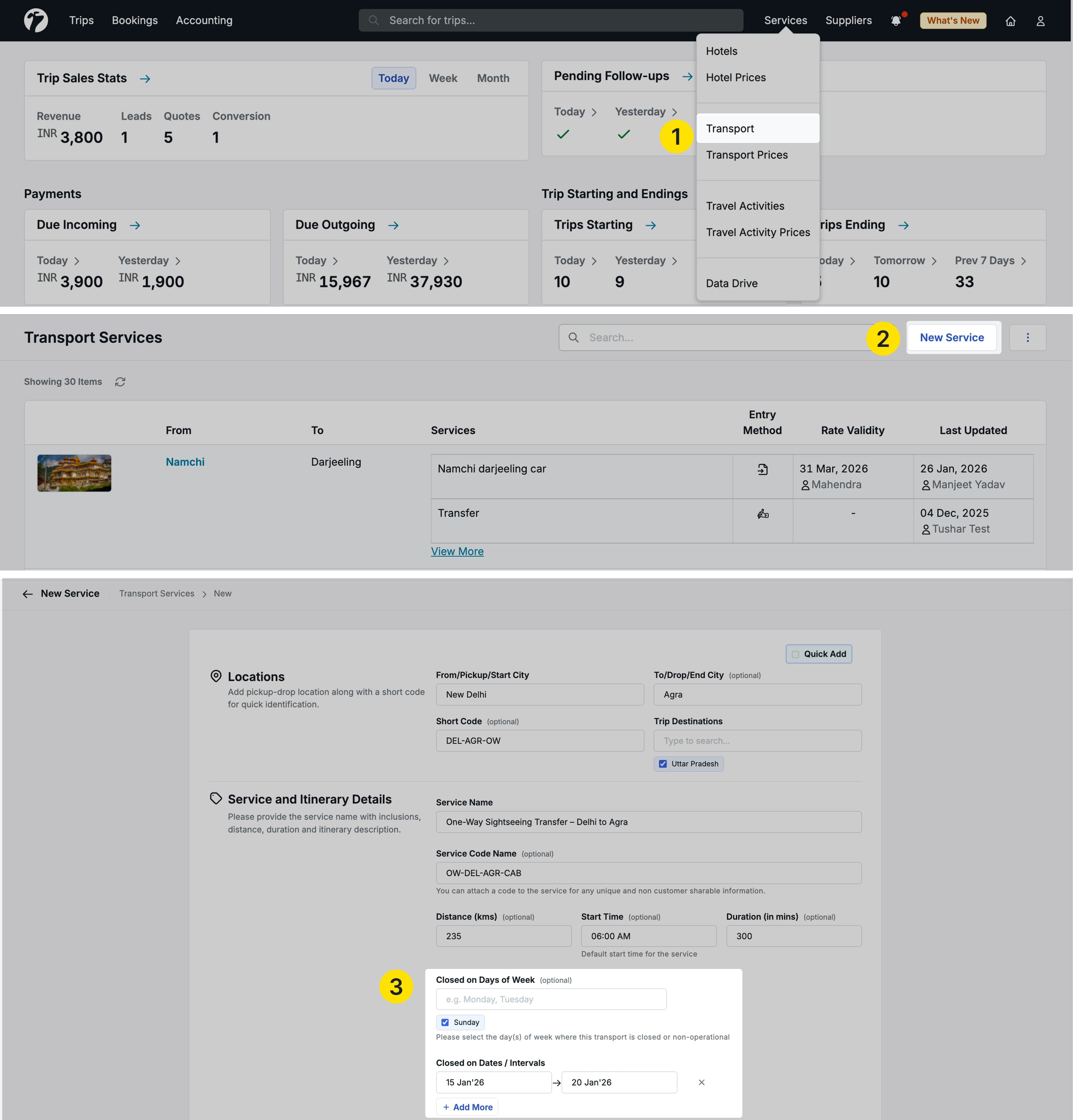
When adding a new transport service
- Navigate to Services → Transport
- Click Create New Service
- Uncheck the “Quick Add” checkbox to reveal all fields
- Scroll to find Close on Day of Week and Close on Date/Interval
- Configure your closing schedule
- Save the service
When editing an existing service
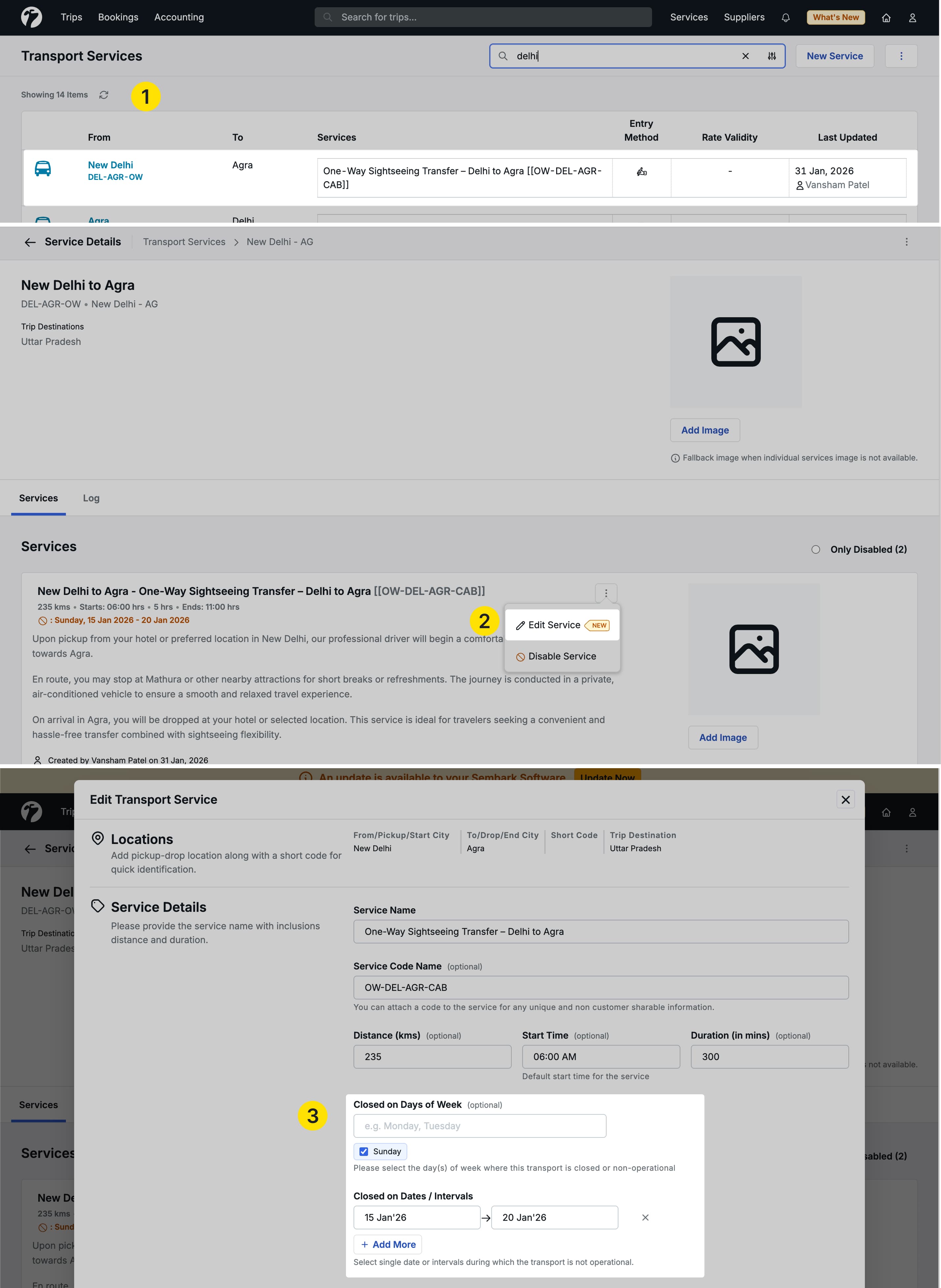
- Go to Services → Transport
- Find your service and click the ellipsis icon on the service row
- Select Edit Service
- Update the Close on Day of Week and Close on Date/Interval fields
- Save changes
You can also access edit options from the service detail page within a specific location.
Warning messages
The system helps prevent scheduling conflicts:
During quotation creation
- If you select a transport service that’s closed on the selected date, a warning message appears
- The warning indicates the service is unavailable for that specific day
- This helps you identify potential scheduling conflicts before finalizing the quotation
For existing quotations
-
If a service closing date is added after the service is already included in a quotation
-
And the quotation falls within the newly added closing period
-
Warnings appear in:
- Service Booking section
- Operations booking for a day
- Anywhere the service is displayed
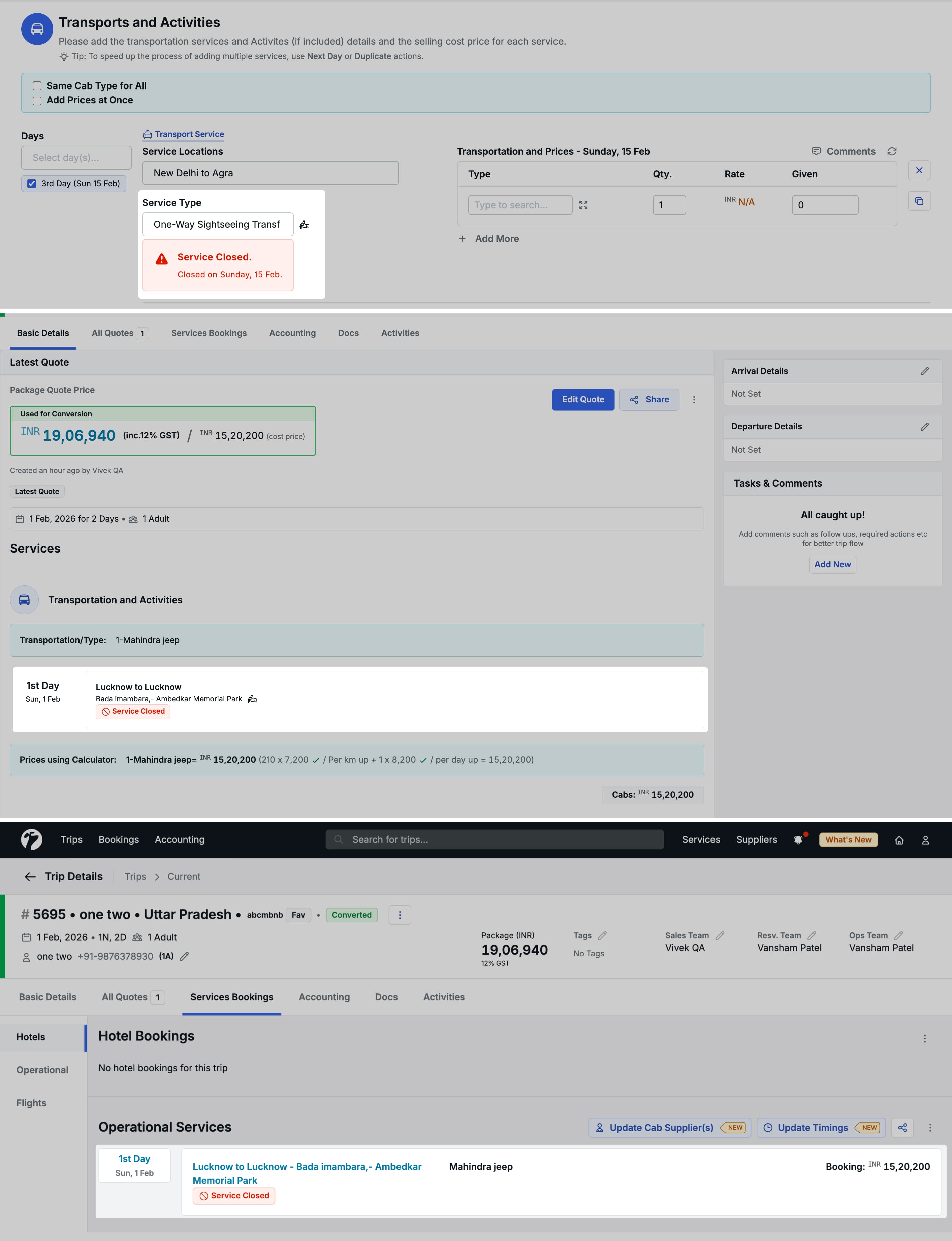
Important: These warnings are informational only—they don’t block your workflow. You can still proceed with the service if needed, but you’re made aware of the closure.
Benefits
- Set closing schedules directly in the UI without CSV uploads
- Automatic conflict warnings during quotation
- Same functionality as sheet upload, now accessible manually
- Better visibility of service availability
4. Cab Metric Pricing Sheet System
We have introduced a Sheet System for managing cab metric pricing that transforms how you add and maintain transport pricing in Sembark. This new feature allows you to create pricing sheets directly in the system with an Excel-like interface or upload them via CSV, while maintaining complete version history and folder organization.
Why this feature matters
Previously, cab metric pricing could only be added manually, which was not a user-friendly method for managing bulk pricing updates. This new Sheet System introduces two ways to manage pricing: upload via CSV files for those who prefer working in Excel, or use our new in-system sheet interface that provides an Excel-like experience directly within Sembark. The in-system Sheet System goes beyond simple CSV uploads—it allows you to create, edit, organize, and version-control all your cab metric pricing sheets without needing to maintain files externally, bringing complete pricing management into one centralized location.
Accessing the Sheet System
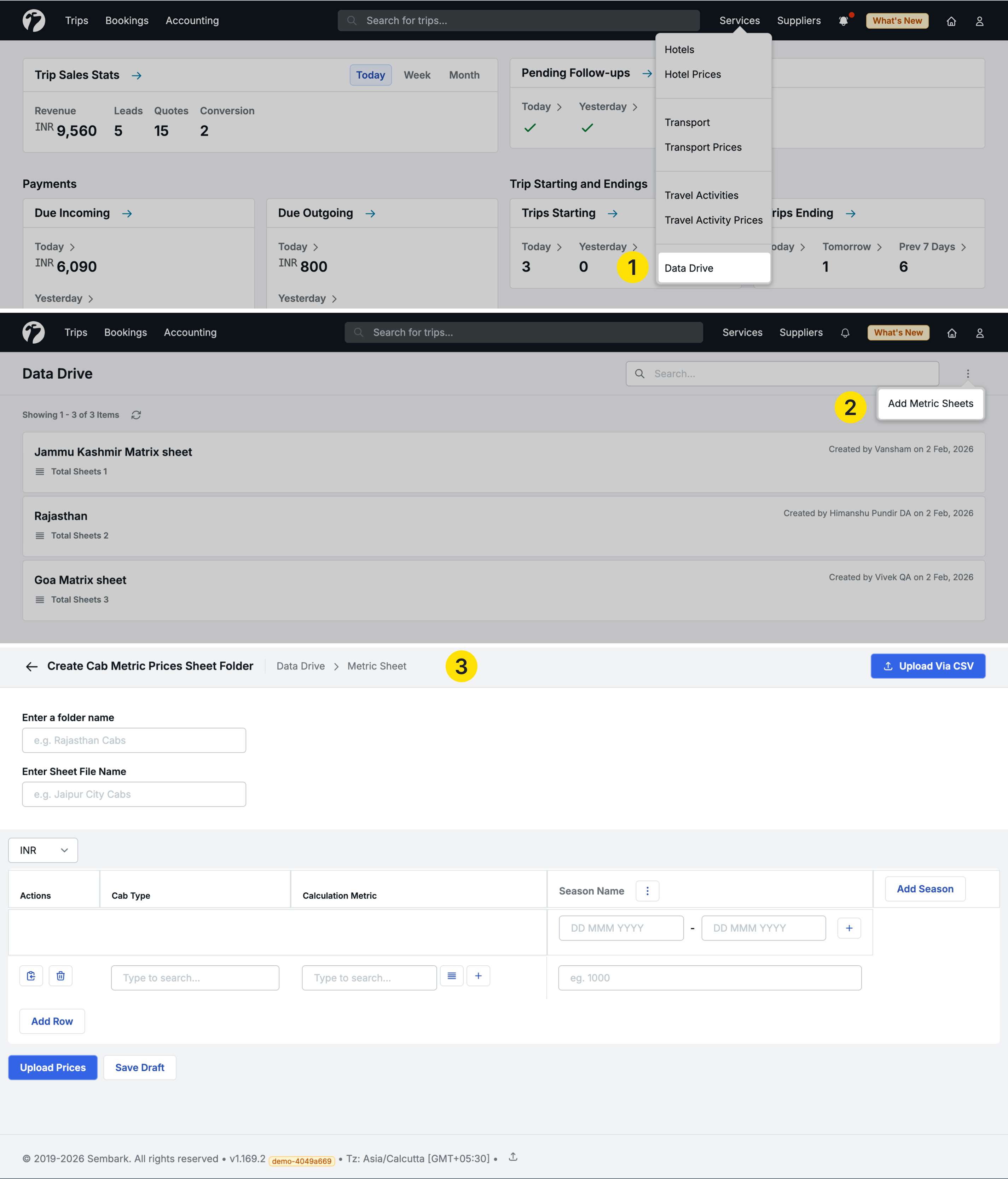
Navigate to Services in the main menu and hover to see the new Data Drive option at the bottom of the list. Click to open the Sheet System interface.
Folder Organization
When you first access Data Drive, you’ll see a folder structure to organize your pricing sheets.
Creating folders and sheets
- Click the ellipsis icon on the right side and select Add Metric Sheet
- Enter a Folder Name to organize related sheets (e.g., “Peak Season 2026”, “Off-Season Rates”)
- Provide a Sheet Name for easy reference
- Select the Currency for all prices in this sheet
- Once created, you can add more sheets to existing folders
The folder view displays:
- Folder name and total number of sheets inside
- Creator name and creation date for each folder
- Easy navigation between folders and sheets
Two Ways to Add Pricing
You can add cab metric pricing through two methods:
Method 1: Create sheets in Sembark (Recommended)
The system provides an Excel-like interface where you can build pricing sheets directly in Sembark with dropdowns, validation, and preset support.
Method 2: Upload via CSV
If you prefer working in Excel or Google Sheets, you can upload pricing via CSV files - the same way you currently upload transport services, activities, and hotel pricing.
Both methods use the same pricing logic and produce identical results. The in-system sheet creation is more user-friendly with built-in validation and preset support.
Sheet System Format and Columns
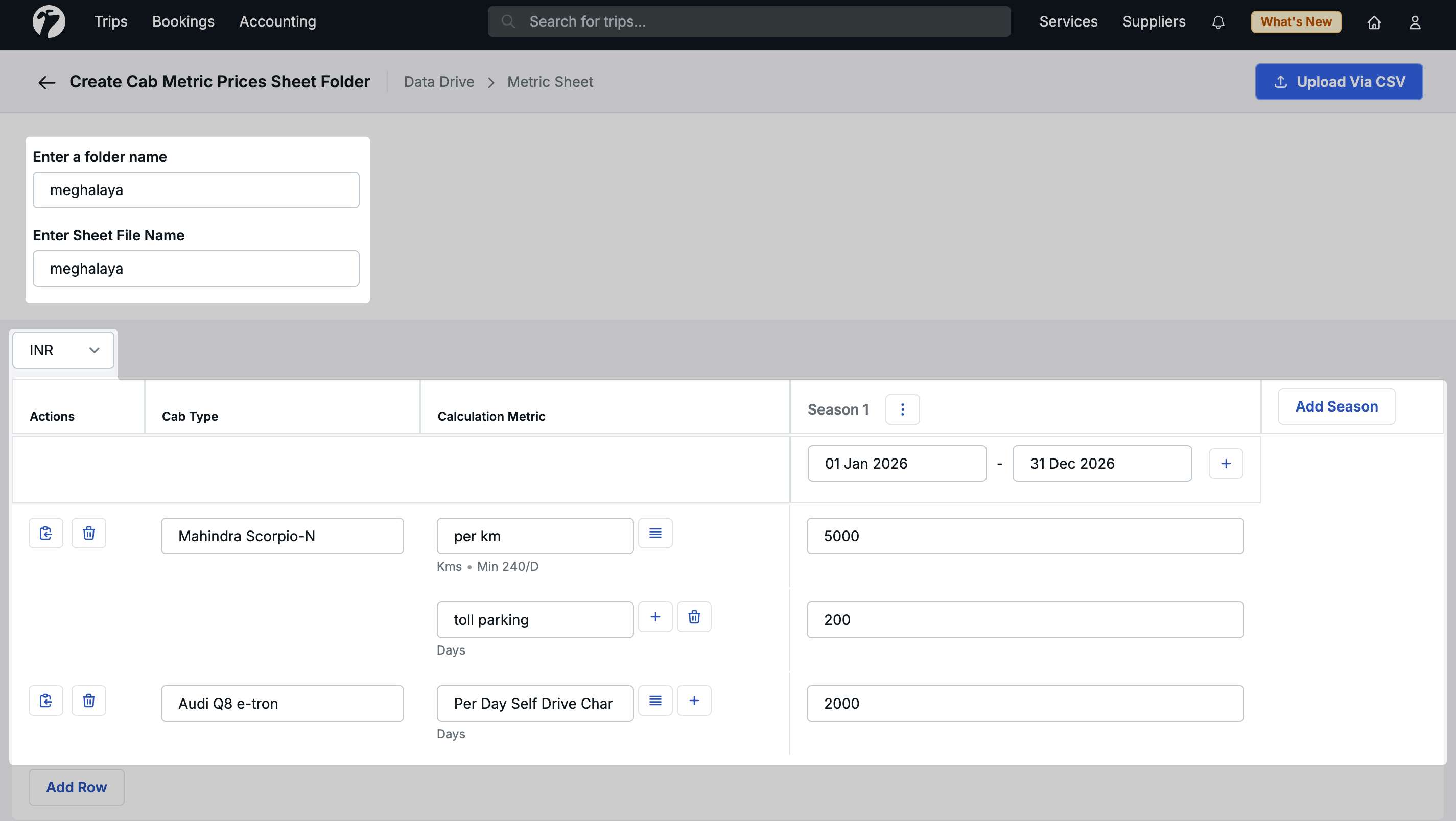
The pricing sheet captures the following information:
Action Column
- Duplicate: Clone an entire row with all settings
- Delete: Remove a pricing row
Cab Type Column
- Select from existing cab types in your system (Innova, Sedan, SUV, etc.)
- Add new cab types directly from the sheet if needed
- Searchable dropdown for quick selection
Calculation Metric Column
- Select the pricing metric for this cab type (Kilometer-wise, Day-wise, Night-wise, Extra Kilometers, etc.)
- Choose from your already created metrics which you have been using already
- Create new metrics directly from the sheet by typing a name and clicking “Add New”
- The metric creation popup pre-fills the name and lets you select the system metric type (Kms, Days, Nights, Extra Kms, Total, Adults, Adults × Number of Days, Children, Children × Number of Days)
Using Calculation Metric Presets:
Click the hamburger icon in the Calculation Metric column to access presets:
- Select from pre-created metric presets
- Create new presets on the fly by typing a name and clicking “Add”
- When you select a preset, all metrics in that preset are automatically added as separate rows for the cab type
- You can add or remove metrics after applying a preset
Seasons Column
Seasons define the date ranges for which your pricing applies.
Adding date ranges:
- By default, one season is created
- Add one or more date ranges to each season (e.g., Jan 1-20, Feb 1-24)
- Season names are editable for your reference (e.g., “Peak Season”, “Holiday Rates”)
- Season names are internal and not displayed in quotations
Adding multiple seasons:
- Click Add Season to create Season 2, Season 3, etc.
- Use multiple seasons when the same cab type and metric have different prices for different date ranges
- Each season can contain multiple date ranges
Example:
- Season 1: Jan 1-22, 2026; March 1-28, 2026; May 1-25, 2026 → ₹18/km
- Season 2: Feb 1-28, 2026; April 1-30, 2026; June 1-30, 2026 → ₹28/km
Adding Prices
Under each season, enter the pricing for the selected cab type and calculation metric combination.
Important rules:
- You can add multiple calculation metrics for one cab type
- Each cab type + metric + date range combination creates a unique pricing entry
- Add as many rows as needed for different cab types and metrics
Upload via CSV Format
If you prefer uploading CSV files instead of using the in-system sheet creator:
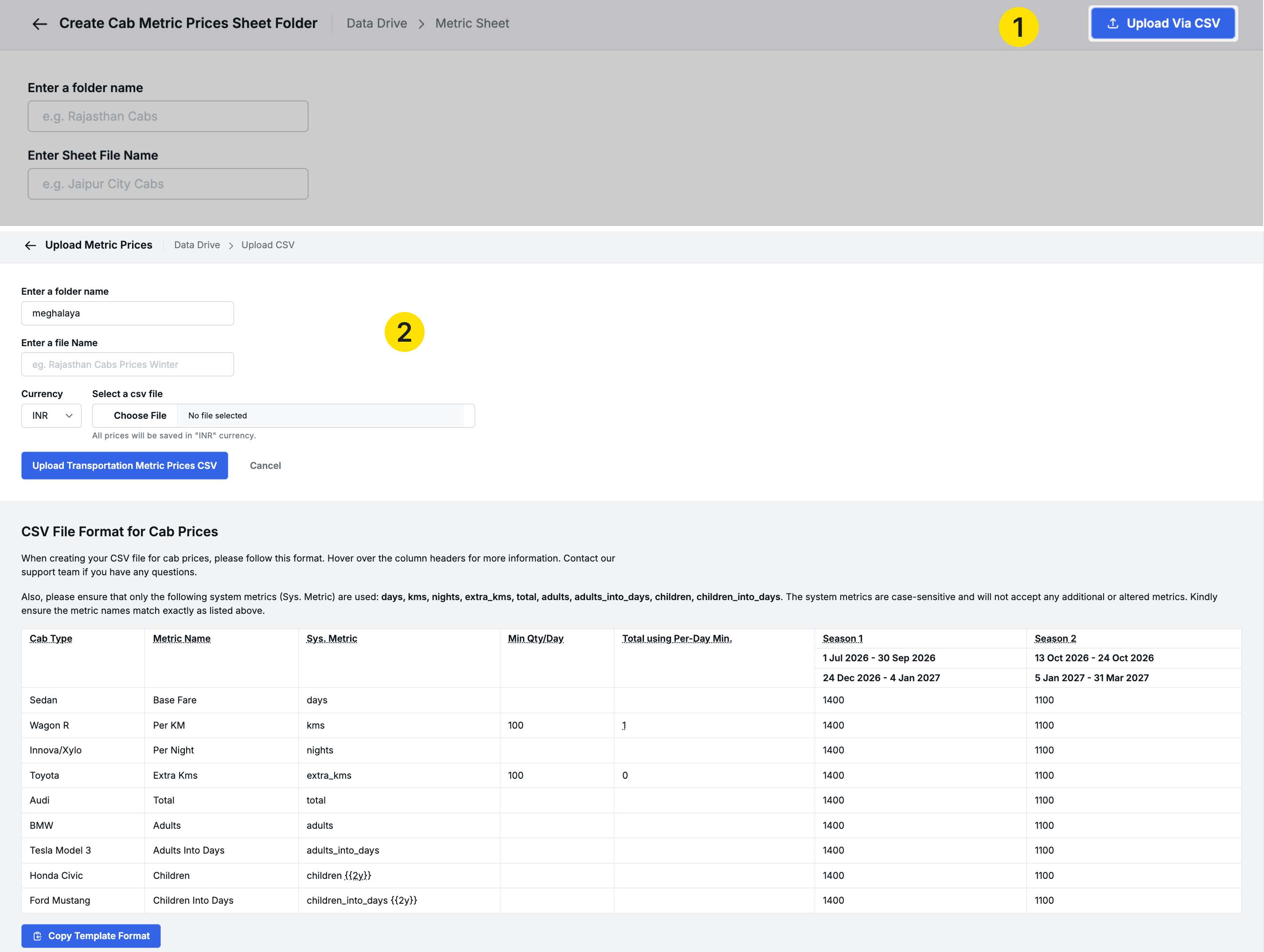
CSV Column Structure
The CSV format includes additional columns since dropdowns aren’t available in Excel:
- Cab Type: Type the exact cab type name
- Metric Name: Type the metric name
- System Metric: Specify the system metric (Kms, Days, Nights, Extra Kms, Total, Adults, Adults × Number of Days, Children, Children × Number of Days)
- Minimum Quantity: If applicable for this metric
- Total Using Per Day Minimum: If applicable for this metric
- Seasons: Date ranges (same format as sheet system)
- Price columns: Your pricing data
How CSV upload works
- If the metric name, system metric, and parameters match an existing metric in your Metrics module, prices are applied to that metric
- If the combination is new, Sembark automatically creates a new metric in the Metrics module and applies the pricing
- This ensures your CSV uploads never fail due to missing metrics
Pricing Logic and Rules
When managing cab metric pricing, the system follows these important rules:
Latest price wins
- If you upload pricing for the same cab type, metric, and date range multiple times, the most recent upload takes precedence
- This applies across different sheets and within the same sheet
Within a single sheet
- If the same cab type + metric + date range appears in Row 1 and Row 4, the system uses Row 4 (latest in the file)
- Always ensure unique combinations to avoid confusion
Managing Sheets
Once sheets are created, you have full control over organization and versioning.
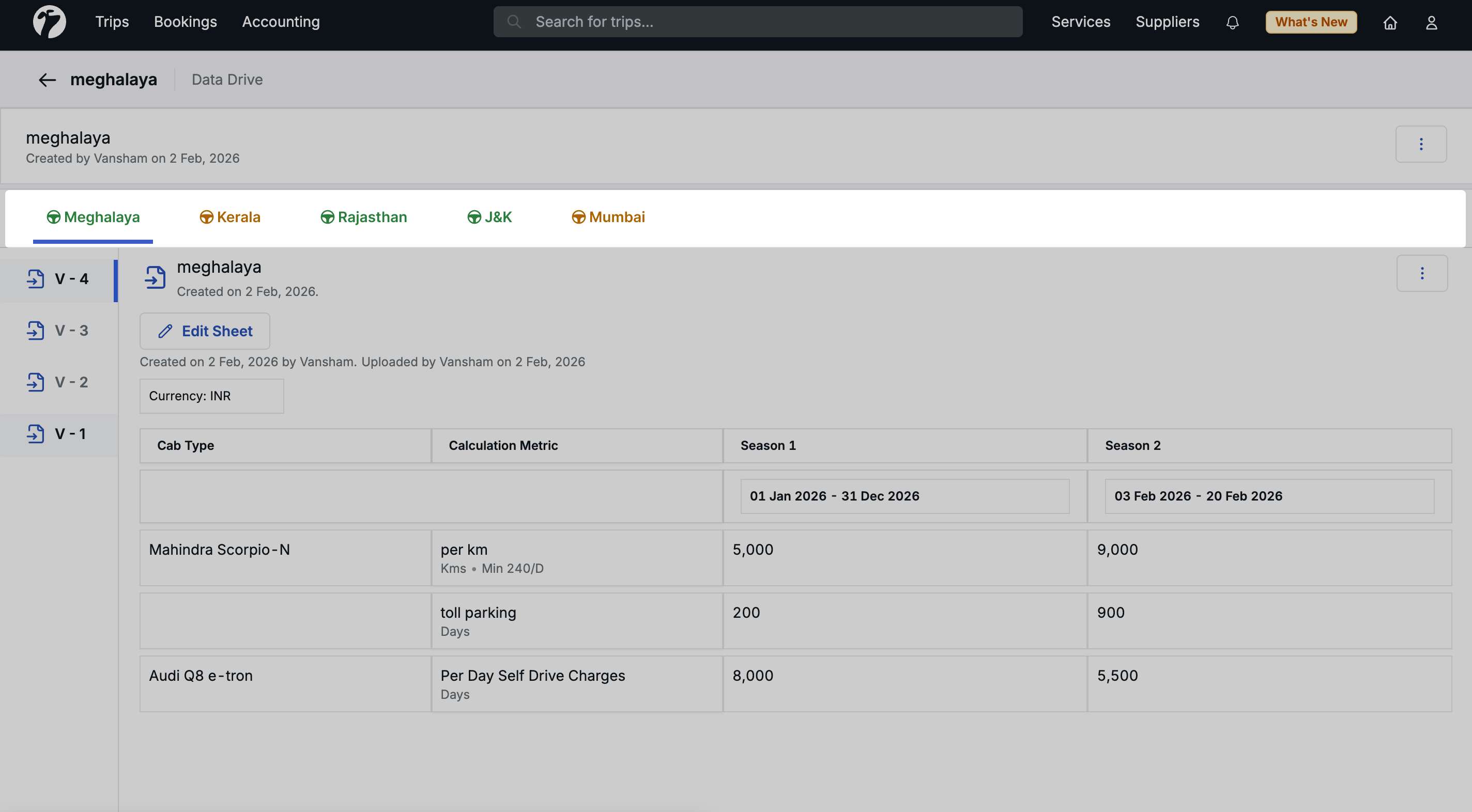
Sheet tabs
- Multiple sheets in a folder appear as tabs at the top
- Click any tab to view or edit that sheet
- Easy navigation between related pricing sheets
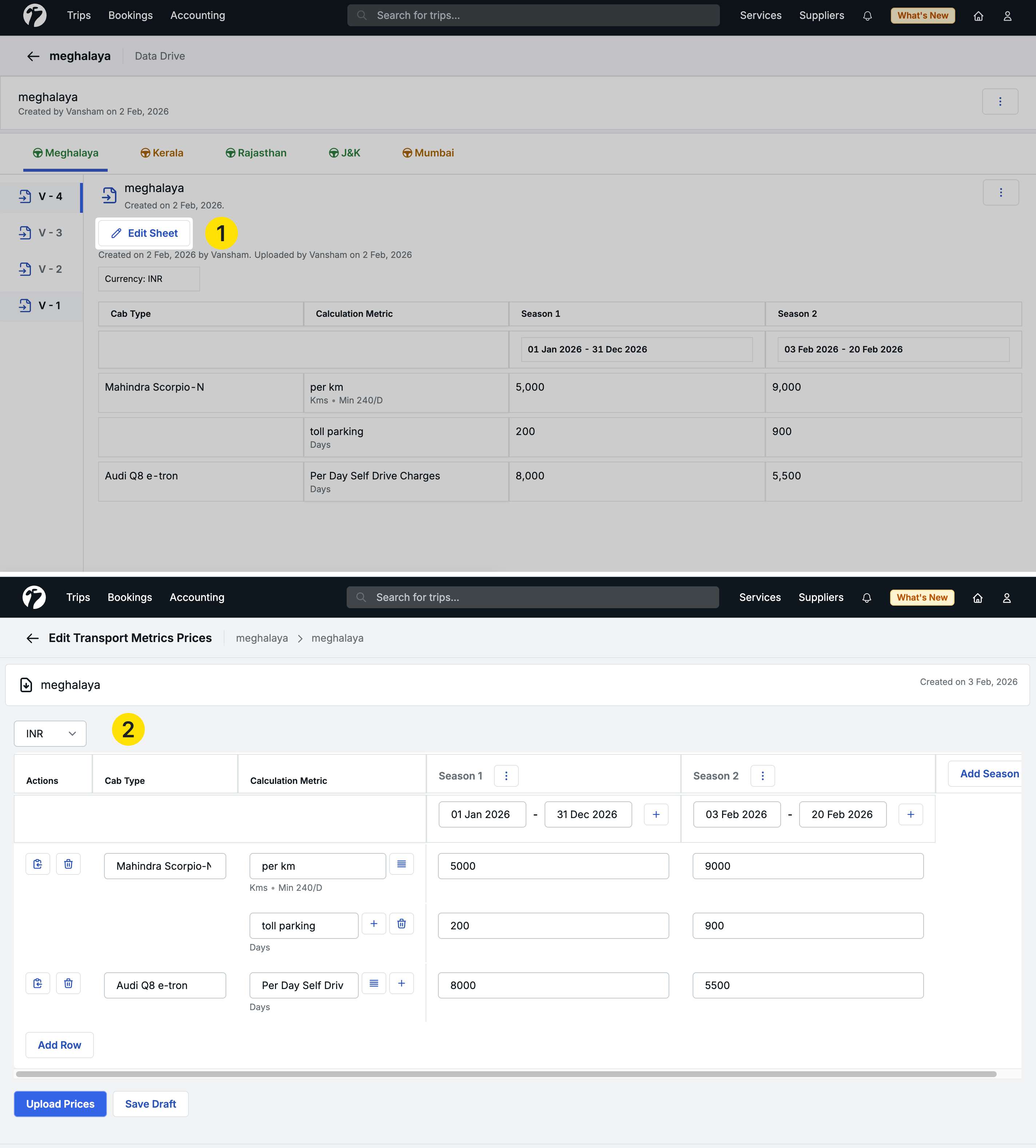
Editing sheets
- Click on a sheet and select Edit from the options
- Modify cab types, metrics, date ranges, or prices
- Add new rows or remove existing ones
- Changes apply only to the rows you modify
Important - Draft and Publish workflow:
When editing an already published sheet:
- Make your changes in the editor
- Click Save Draft (you cannot directly publish)
- Go back to the sheet
- Open it again and click Upload Price
This two-step process ensures pricing changes are reviewed before going live.
Version Control
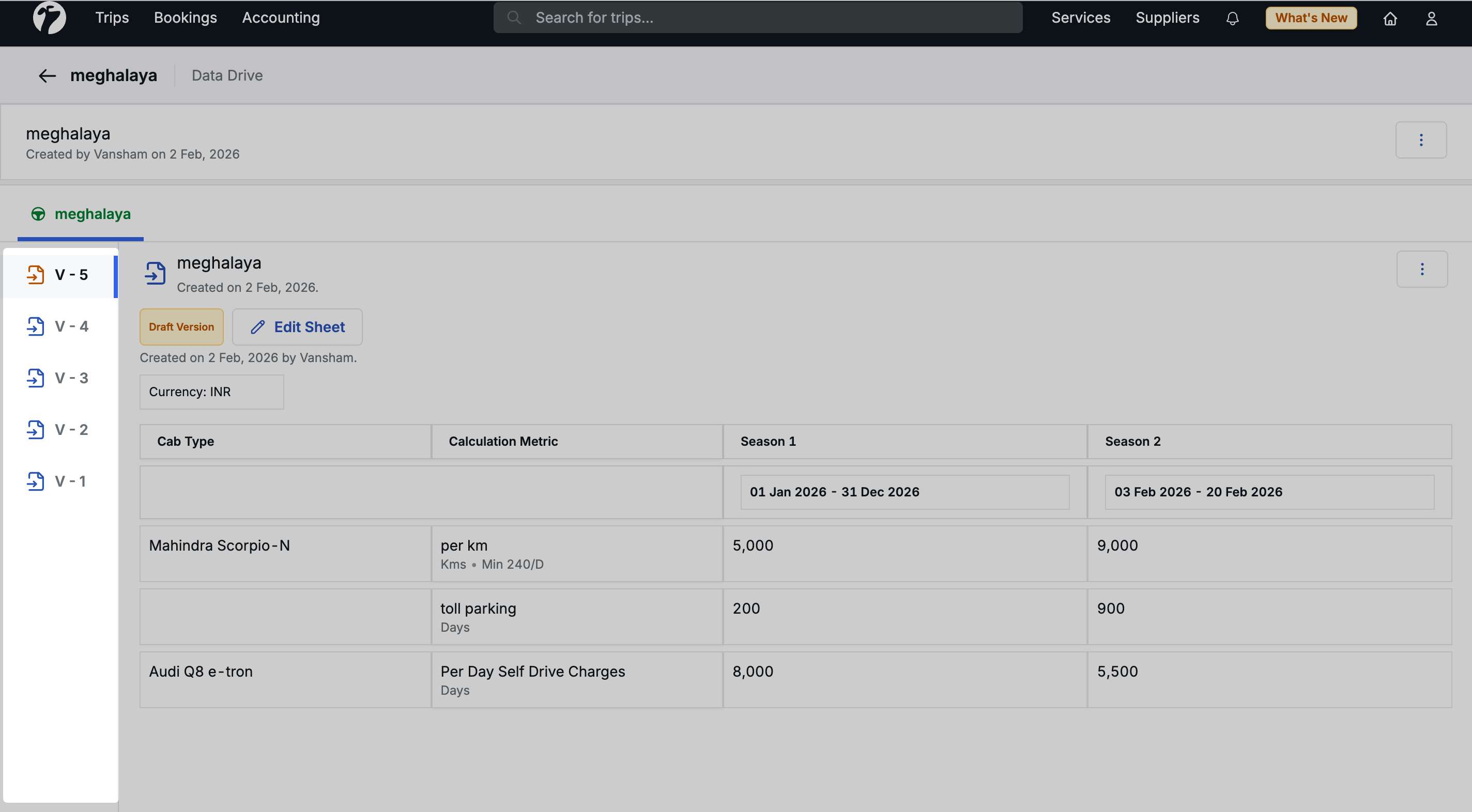
Every edit to a sheet creates a new version, allowing you to track changes over time.
Version history
- Version 1: Original sheet creation
- Version 2: First edit (saved as draft or published)
- Version 3: Subsequent edits
- Each version stores who made the changes and when
Working with versions
- View any previous version
- Compare versions side-by-side
- Edit any version and make it the current live version
- Roll back to earlier pricing if needed
Comparing Sheet Versions
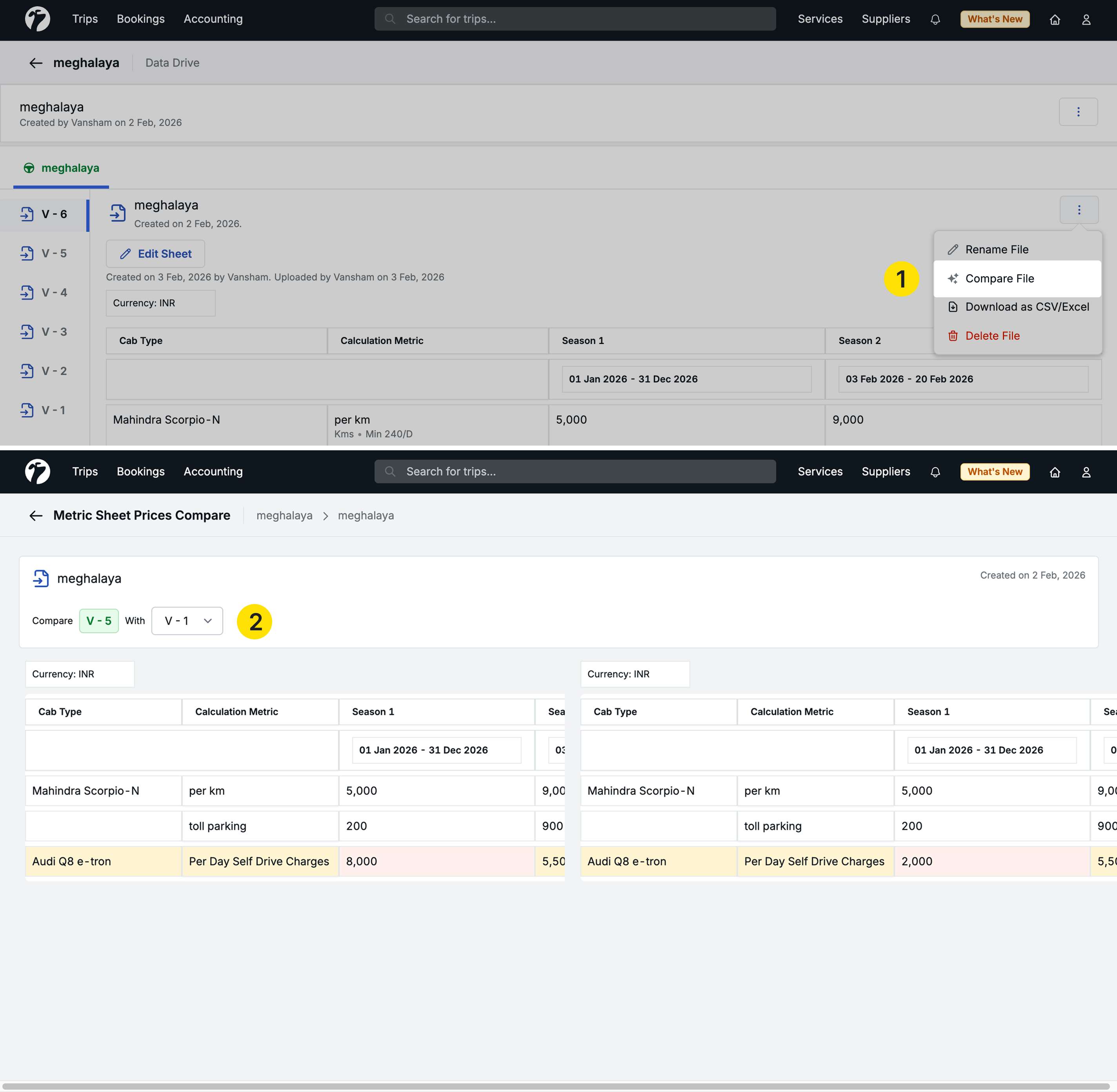
The comparison feature helps you identify exactly what changed between versions.
How to compare
- Open a sheet and select Compare
- The latest version appears on the left by default
- Select any older version from the dropdown on the right
- Changes are highlighted in orange and red color-coded boxes
What you can compare
- Cab type changes
- Metric changes
- Date range modifications
- Price adjustments
- Added or removed rows
This visual comparison makes it easy to audit pricing changes and understand what was updated.
Folder and Sheet Management
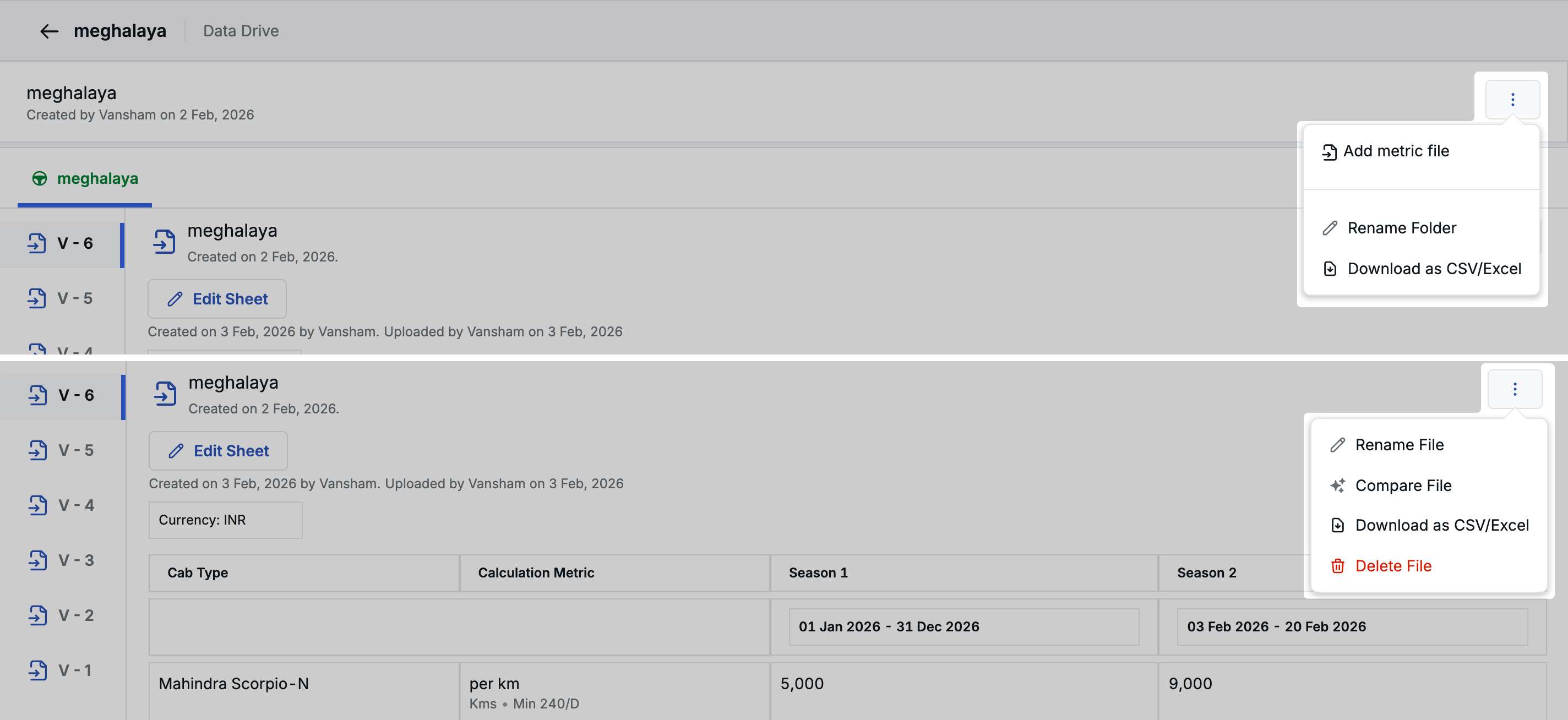
Folder actions (ellipsis menu)
- Add Metric Sheet: Create a new sheet in this folder
- Rename Folder: Change the folder name
- Download Folder: Downloads all sheets in the folder as a single Excel file with multiple tabs
Sheet actions (ellipsis menu)
- Rename File: Change the sheet name
- Download CSV/Excel: Export this sheet as a CSV file
- Delete File: Remove the sheet permanently
Use Case Summary
The Cab Metric Pricing Sheet System solves critical workflow challenges:
-
Before: Manual one-by-one pricing entry, no bulk upload option, difficult to manage large pricing updates
-
After: Create sheets in Sembark, upload via CSV, maintain complete version history, compare changes visually, organize in folders
-
Benefits:
- Centralized pricing management
- No external file management needed
- Complete audit trail with version control
- Visual change tracking between versions
- Bulk pricing updates via sheet or CSV
- Team collaboration with creator tracking
- Organized folder structure for different seasons or campaigns
Coming Soon: This Sheet System will be extended to Transport Service pricing and Activity pricing in future updates, allowing you to manage all your pricing with the same sheet interface and version control capabilities.
5. Hotel Booking Enquiry - Customer Name in Email Subject
We have added a Customer Name variable to the Hotel Booking Enquiry Email template, allowing more personalized communication with hotel suppliers.
Accessing the template
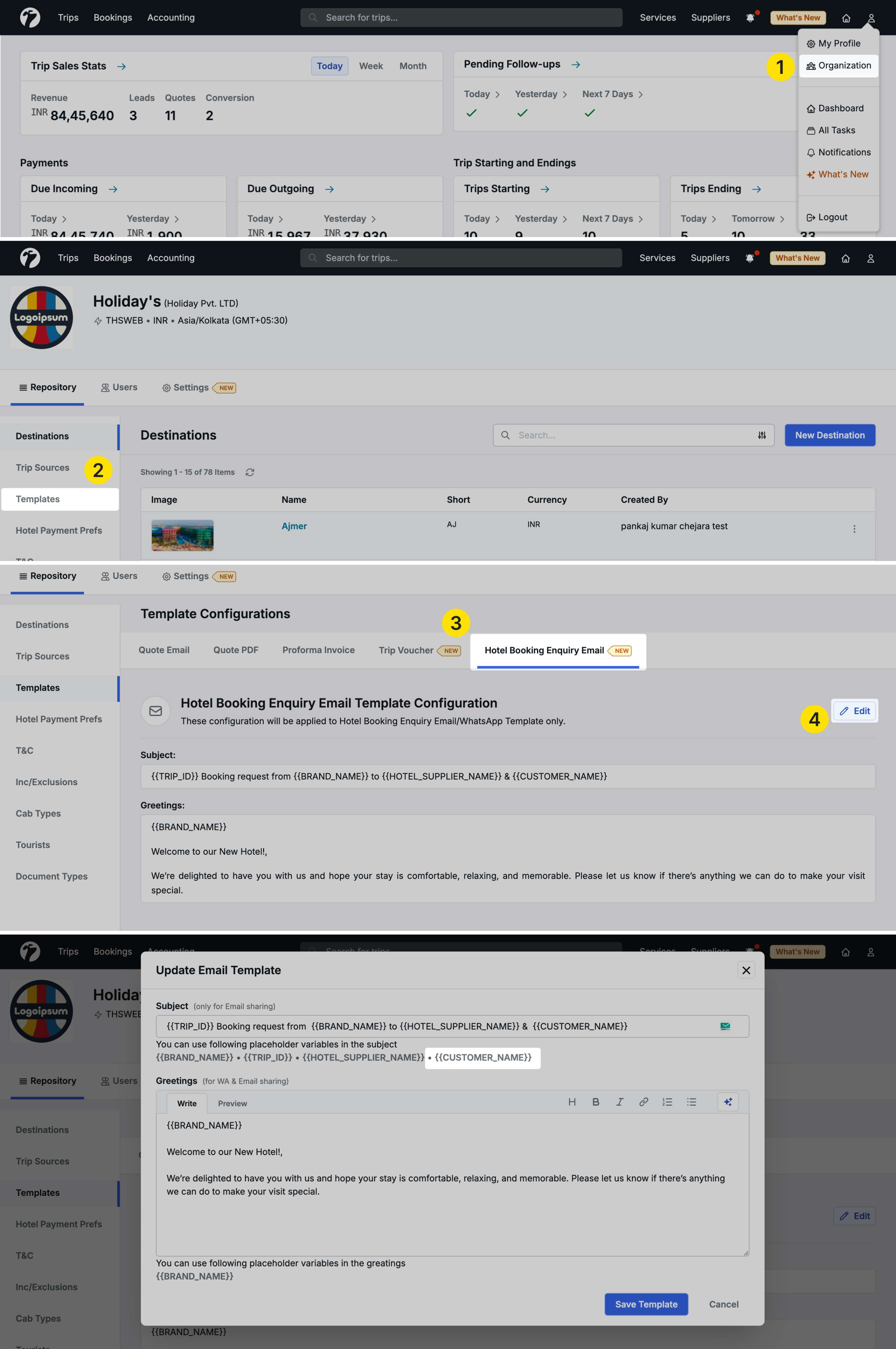
Navigate to Profile → Organization → Repository → Templates → Hotel Booking Enquiry Email Template
What’s new
In addition to the existing variables, you can now use Customer Name in the email subject line.
Available variables for subject
- {{BRAND_NAME}}: Your brand name
- {{TRIP_ID}}: The trip number
- {{HOTEL_SUPPLIER_NAME}}: The hotel or supplier name
- {{CUSTOMER_NAME}}: The guest/customer name (new)
How it works
When you send a hotel booking enquiry, the system dynamically replaces {{CUSTOMER_NAME}} with the actual guest name from the trip.
For Direct source trips
- Guest name is mandatory for direct bookings
- The customer name is always populated and displayed correctly
For B2B Agent source trips
- Guest name is optional for B2B bookings
- If no guest name is entered, the variable shows a placeholder text:
[[CUSTOMER_NAME_NA]] - You can manually edit the email and replace it with the actual name before sending
Benefits
- More personalized email communication with hotels
- Professional subject lines that include guest information
- Flexibility to customize when guest name is unavailable
6. Trip Plan Request Report - Created On Field
We have added a Created On column to the Trip Plan Request download report for better tracking of lead generation timing.
What’s included
The Created On field shows the exact date and time when a trip plan request was registered in the Sembark system.
Why it matters
Trip plan requests come from various integrations:
- Google Ads campaigns
- Website forms
- Google Forms
- Other marketing channels
The Created On timestamp helps you:
- Track lead response times
- Analyze campaign effectiveness
- Understand inquiry patterns by date
- Audit lead flow timelines
This field was previously missing from the Excel download and has now been added for complete reporting.
7. Hotel Merge - Entry Type Indicator
When merging hotels, you can now see how each hotel was originally added to the system.
Accessing hotel merge
Navigate to Services → Hotels → click the ellipsis icon (top right) → select Merge Hotels
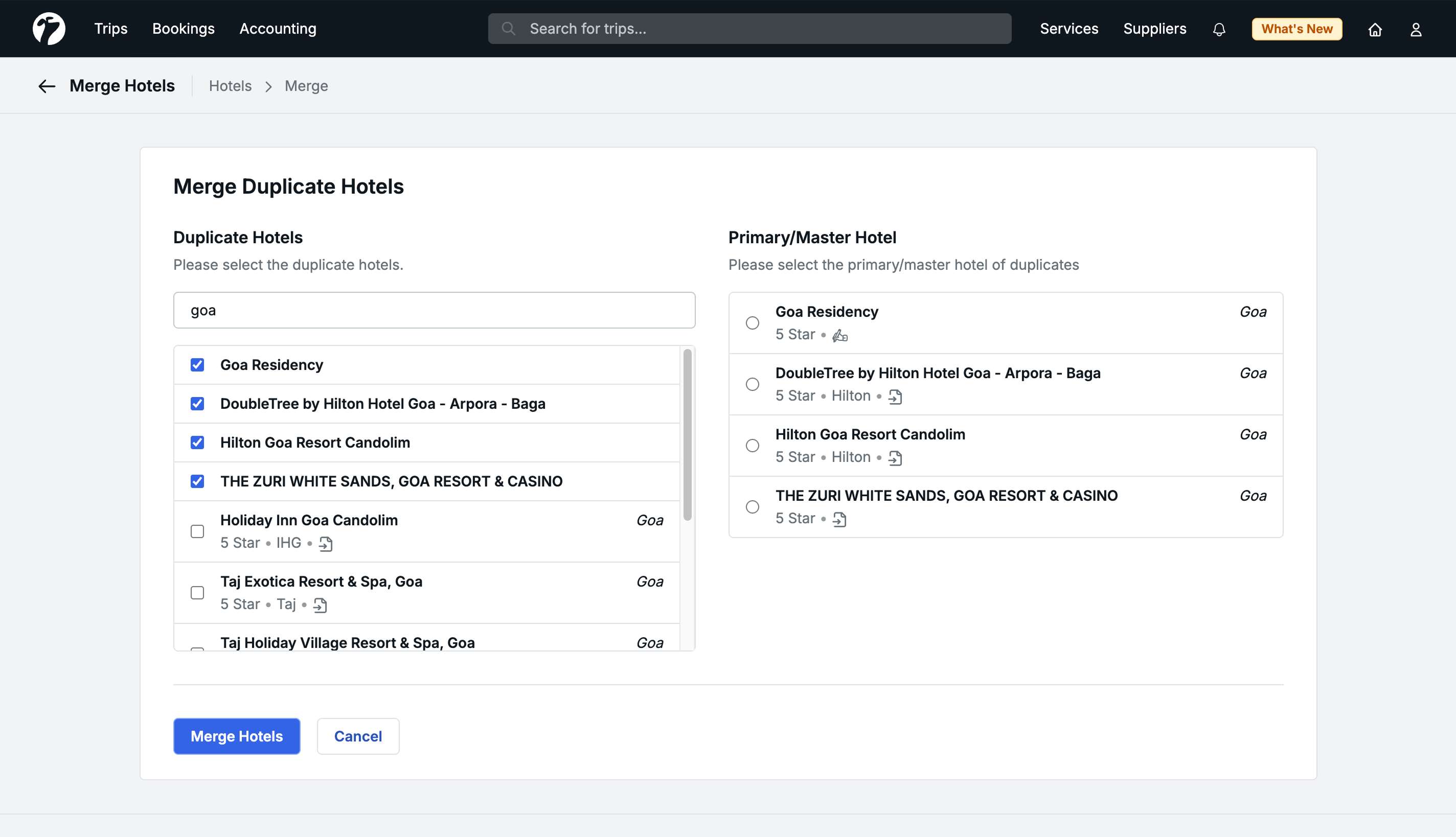
What’s new
Each hotel in the merge selection now displays an Entry Type icon indicating whether it was:
- Added manually through the UI
- Added via sheet upload
Benefits
- Quickly identify the source of hotel entries
- Make informed decisions when merging duplicate hotels
- Understand which hotels came from bulk uploads vs manual entry
- Better data quality management
8. Other Improvements
- Hotel/Cab/Activity booking price sync: Improved the syncing process when prices are updated during booking
- Empty price handling: When setting an empty price for hotel bookings or extras, the system now correctly maintains the empty value instead of auto-filling
- Hotel voucher guest list: Guest lists in hotel vouchers now display only when all guest details have been completely filled
- Sales Person visibility: Added “Show More” option for better sales person selection in longer lists
- Text and grammatical fixes: Corrected grammatical errors in Disable Transport Services popup and Children tooltip text
- Quote suggestion bug fix: Resolved issue with quote suggestions not appearing correctly
- MS Word voucher crop fix: Fixed cropping issue when downloading vouchers in Microsoft Word format
- Asynchronous report generation: Improved report generation performance for large datasets
- Report download manager: Introduced temporary storage system with download manager for better handling of large reports
- System rate change messaging: Enhanced error messages when system rates change to provide clearer guidance